Have you ever wondered what happens when you type a URL in a browser? It feels instantaneous, but between the moment you hit “Enter” and the page appearing on your screen, a complex dance of protocols and handshakes occurs.
Understanding what happens when you type a URL in a browser is the first step for any aspiring developer. It reveals how the internet actually works and why some websites feel lightning-fast while others lag. Let’s break down what happens when you type a URL in a browser in 2026.
The Quick Summary: What Happens When You Type a URL in a Browser
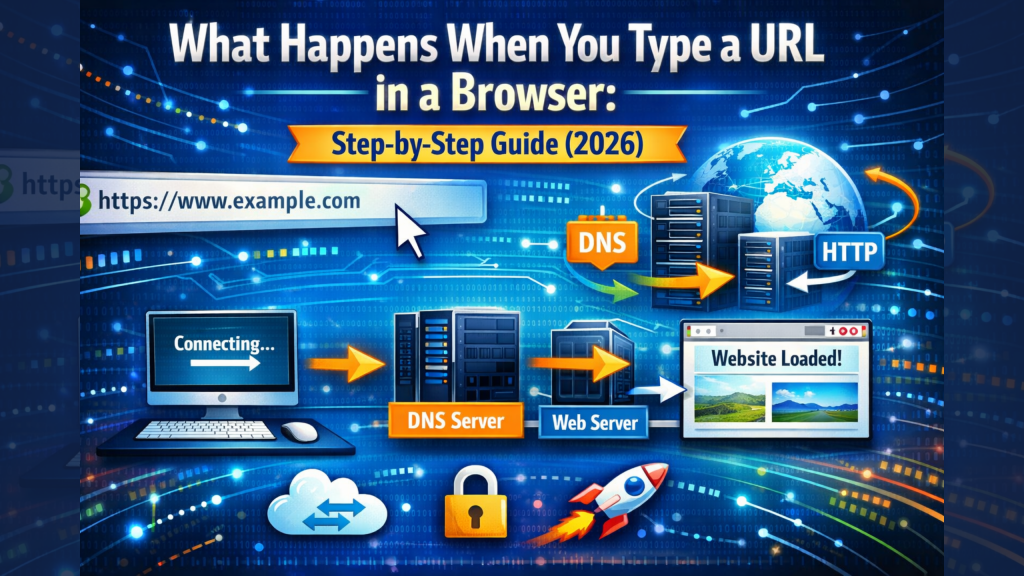
If you’re preparing for a technical interview, here is the short version of what happens when you type a URL in a browser:
- DNS Lookup: The browser converts the domain (e.g.,
weblogtrips.com) into an IP address. - TCP/TLS Handshake: A secure connection is established between your device and the server.
- HTTP Request: Your browser asks the server for the website data.
- Server Response: The server sends back HTML, CSS, and JavaScript.
- Rendering: The browser builds the page and displays it to you.
What Happens When You Type a URL in a Browser
Step 1: The Browser Checks Its Cache
Before reaching out to the internet, the browser checks its local memory. It looks at the Browser Cache and DNS Cache to see if you’ve visited this site recently. If the IP address is already stored, it skips the lookup and saves precious milliseconds.
Step 2: DNS Resolution (The Phonebook of the Web)
If the IP isn’t cached, the DNS Lookup begins. Your browser asks a Recursive Resolver (usually your ISP) for the address. If they don’t know, it climbs the ladder to Root Nameservers, then TLD Nameservers (like .com), and finally the Authoritative Nameserver.
Key Fact: This is what happens when you type a URL in a browser to ensure your request reaches the correct server out of billions.
Step 3: Establishing a Secure Connection (TCP/TLS)
Once the IP address is found (e.g., 192.168.1.1), your browser initiates a TCP Three-Way Handshake. In 2026, almost all sites use HTTPS, meaning a TLS Handshake also occurs to encrypt the data. This is what happens when you type a URL in a browser to keep your credit card info and passwords safe from hackers.
Step 4: The HTTP Request & Server Logic
Now, the browser sends an HTTP GET request. The server (using software like Nginx or Node.js) receives this request, talks to its database if necessary, and prepares a response.
Step 5: Rendering the Page (The Final Magic)
The server sends back a 200 OK status and the raw HTML code. This is what happens internally:
- DOM Tree: The browser parses HTML.
- CSSOM Tree: The browser parses CSS.
- Render Tree: It combines the two to decide what actually needs to be shown.
- Painting: The browser draws the pixels on your screen.
Troubleshooting: Why This Process Might Fail
Sometimes, things don’t go as planned. You might see:
- 404 Not Found: The URL path is wrong.
- 500 Internal Server Error: The server crashed while processing your request.
- Apple Security Warning: If your browser detects an expired certificate, you’ll see an Apple Security Warning on your iPhone. As we discussed in our security guide, always verify if these warnings are legitimate before proceeding.
Pros and Cons of Modern Browser Loading
- Pros: Modern browsers use Incremental Parsing, meaning they show you the top of the page while the rest is still loading.
- Cons: If you have too many “render-blocking” scripts, the browser stops everything to read them, making the site feel “stuck”.
Frequently Asked Questions (FAQ)
1. Is it dangerous when I see an Apple Security Warning?
If your browser can’t complete the TLS Handshake correctly, you might see an Apple Security Warning on your iPhone. While sometimes these are legitimate (expired certificates), they are often scams. Always check if the URL is correct before clicking “Proceed.”
2. Can a VPN change what happens when you type a URL in a browser?
Yes! A VPN adds an extra step by routing your request through another server first. While this can slightly slow down the DNS lookup, it provides the privacy we discussed in our Top 5 Paid VPNs for Streaming guide.
3. Why do some sites load faster than others?
It often comes down to the server’s location and quality. To ensure your own site loads fast during this process, check our list of the Best Website Hosting 2026.
More From Weblogtrips
- Top 5 Free AI Logo Makers in 2026: Brand Your Business for $0
- Top 5 Free AI Website Builders in 2026: Build Your Site in Minutes
- Top 5 Free Text to Image and Video Platforms in 2026: Create Masterpieces for $0
- Top 5 Free AI Platforms 2026: Complement your audio with AI writing tools.
- Best & Safest Free VPNs 2026: See the difference between free and paid options.
- Apple iPhone Security Warning Guide: Why technical security matters for your mobile device.
- Best Website Hosting 2026: Secure your own digital infrastructure.
External Links
- MDN Web Docs: Critical Rendering Path: Deep technical dive into painting and layout.
- Cloudflare: How DNS Works: Excellent visualization of the “phonebook of the web”.
- IETF: TLS 1.3 Specification: The official rules for secure internet connections.
Final Verdict
Understanding what happens when you type a URL in a browser helps you optimize your own site. By using a Best Website Hosting 2026 provider and a CDN, you can shorten the time it takes for these steps to complete, making your site feel instant.